Scans that look like they came off the glass.
Platen reproduces what a real scanner does to paper: toner spread, fibre texture, a slightly crooked page, the shadow along the lid. Drop in a file and download a scanned PDF in seconds.
- Free, no account
- Files stay on your device
- Works offline

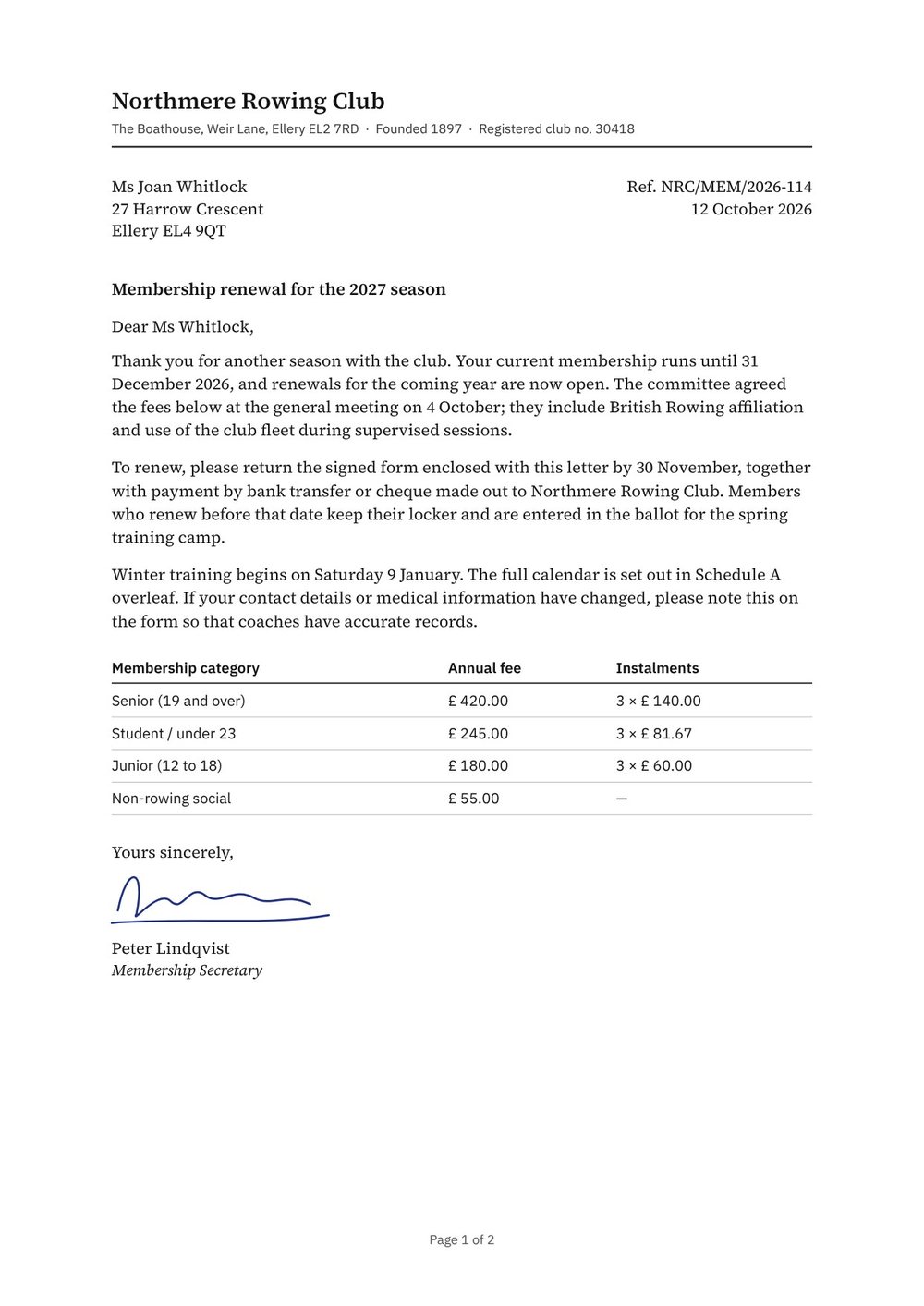
Pick the machine, then fine-tune.
Each preset models a real device. All 19 settings stay adjustable, and every page gets its own skew and dust, the way a stack of real pages would.
- Office scannerClean greyscale at 200 dpi with a slight skew. The everyday sheet-fed look.
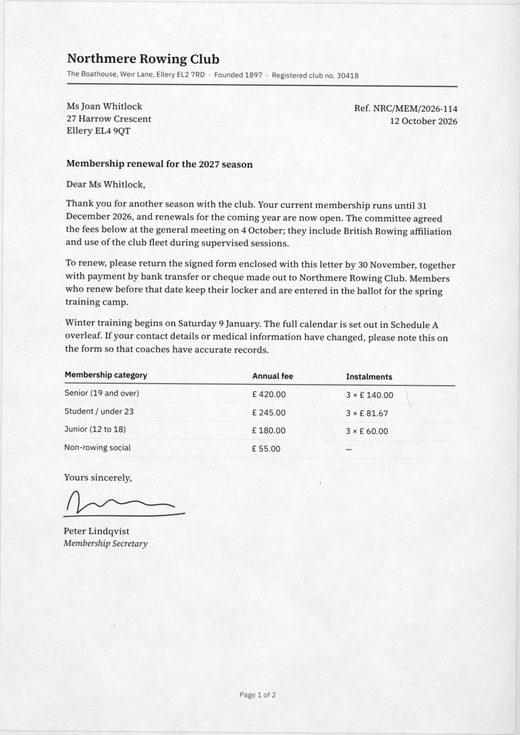
- Colour flatbedWarm ivory paper, softened colour and a visible page edge.
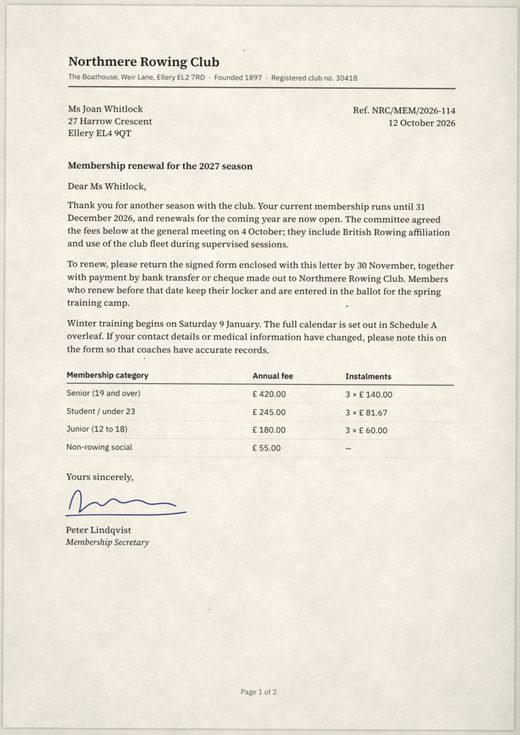
- PhotocopyHeavy toner, drum streaks and grit. A copy of a copy.
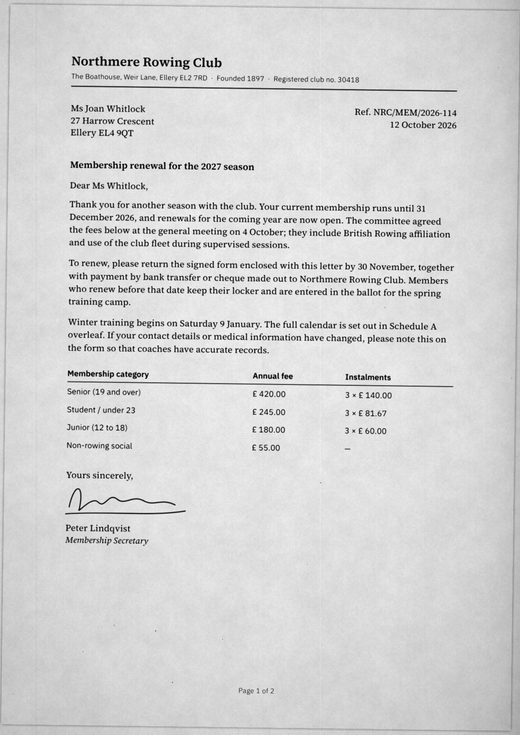
- Fax1-bit black and white at 100 dpi, with ragged letterforms.
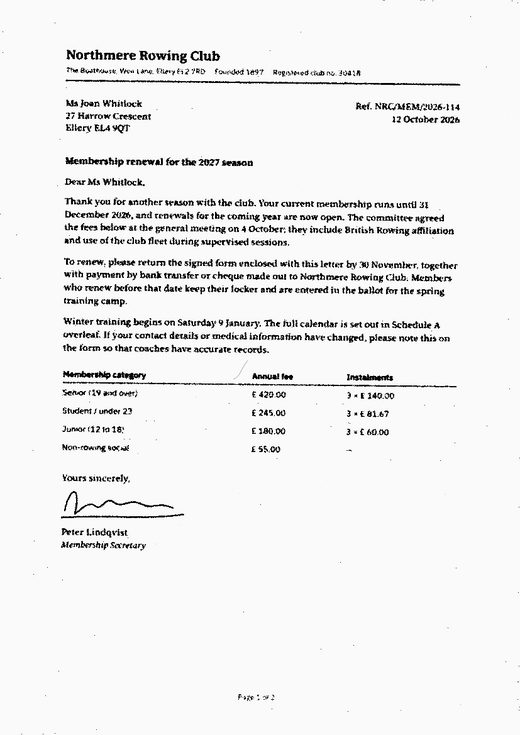
- Phone photoPerspective, uneven light and a desk behind the page.
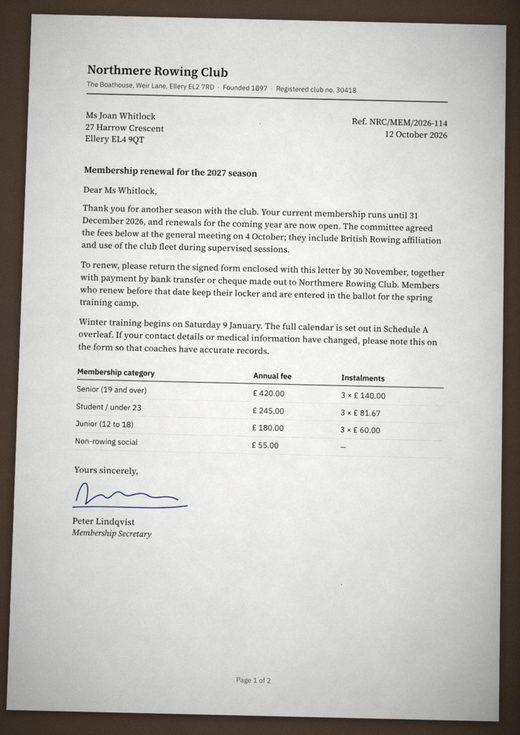
Blur and noise are not a scan.
Most tools blur the page, sprinkle noise and rotate it. Platen simulates the physical process instead, step by step.

- Ink
Toner spreads into the paper
Thin strokes thicken, blacks settle at a deep grey and faint anti-aliasing drops out, as it does under a scanner's tone curve.
- Paper
Fibre you can see
Paper tone is mottled at three scales, from cloudy patches down to fine grain. Choose bright white, ivory, recycled or cool grey stock.
- Light
The lid never closes flat
A soft shadow falls along one edge, consistently on every page, with gentle falloff and an optional vignette.
- Sensor
Streaks run the whole page
Dirty glass and a worn drum leave vertical lines from top to bottom, plus dust specks, the odd hair and toner grit.
- File
Real JPEG compression
The preview is the encoded JPEG, so what you see is exactly what lands in the PDF.
Three steps, under a minute.
Open your file
Drop a PDF or a set of JPG, PNG or WebP images onto the page. Several images become one multi-page document.
Choose a look
Start from a preset and adjust skew, contrast, paper and artefacts. Drag the slider to compare with the original.
Export
Download a scanned PDF at the original page size, or save a single page as a JPG.
Your documents never leave your computer.
All processing happens in your browser. There is no upload, no server-side conversion and no account. After your first visit, Platen keeps working with no connection at all.
- Files uploaded to a server
- None
- Account or email needed
- No
- Cookies, ads or trackers
- None
- Works offline after first visit
- Yes
- Watermark on your output
- Never
FAQ
Which files can I use?
PDF files of any length, and JPG, PNG or WebP images. To scan a Word, Excel or PowerPoint file, save it as PDF first (File, then Save As or Export, then PDF).
Is the text still selectable after scanning?
No. Like a real scan, every page becomes an image. That is what makes the result convincing. If you need searchable text, keep the original alongside it.
How big are the exported files?
Roughly 300 to 600 KB per A4 page at 200 dpi greyscale. Lower the resolution or the JPEG quality for smaller files; 150 dpi is plenty for email.
Why does every page look slightly different?
Real pages never feed through a scanner the same way twice, so Platen gives each page its own skew, dust and streaks while keeping the scanner's characteristics constant. Press Rescan for a fresh set.
Does it work on my phone?
Yes, in any modern mobile browser. Long PDFs at high resolution take longer on a phone, so try 150 dpi.
Is it really free?
Yes. There is no paid tier, no page limit and no watermark.